Sanctuary help

Connect your steps with Health Connect

Set up Android step access in Sanctuary and check your first sync.

Steps to follow

  1. Install Sanctuary from its official Google Play listing and sign in. Sanctuary is for adults aged 18 and over.
  2. In Sanctuary, open Profile and find Health Connection in the Settings section. If it says Not connected, tap Connect. Follow the Health Connect permission prompts and allow step access.
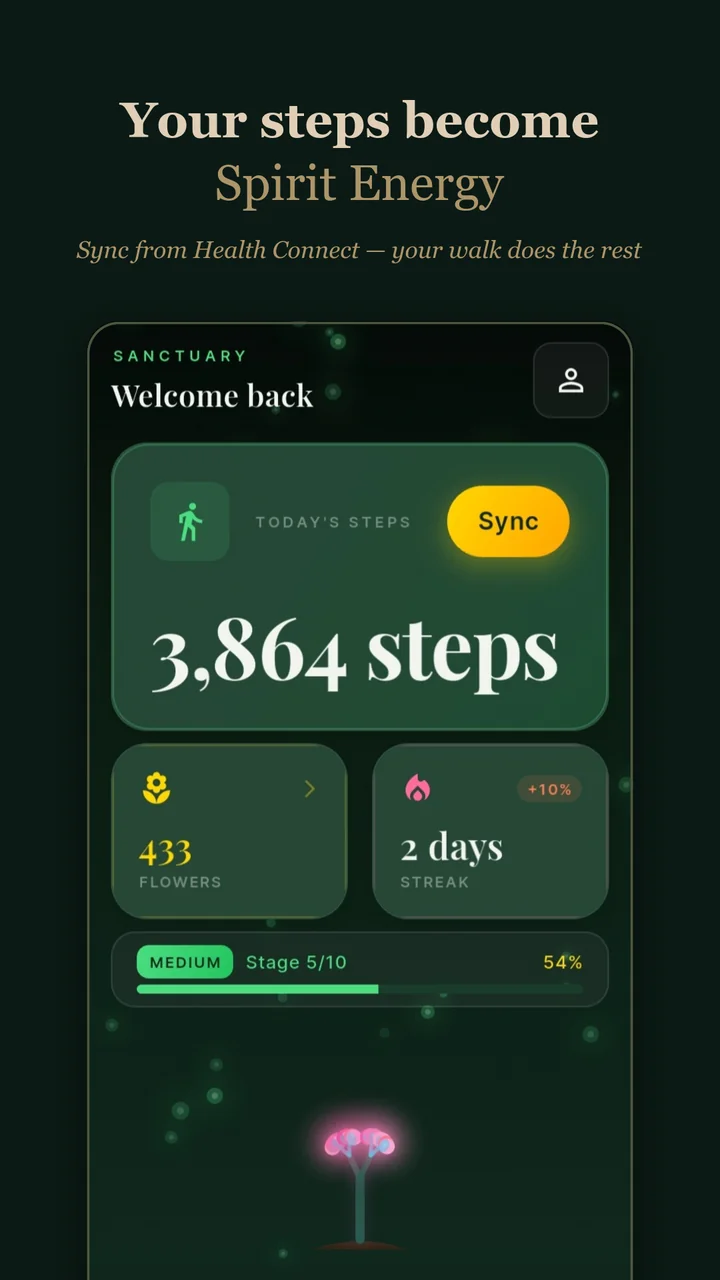
  3. Return to Home and tap Sync. Keep an internet connection while the app sends eligible steps for validation.
  4. If Background sync > Allow is offered, you can enable it. Background updates depend on your device, permissions and support.

What to keep in mind

Health Connect support and permission prompts vary by device. The iOS app is in development. You do not need GPS for step-powered garden progress.

Ask app support for help

A garden of your own

A look inside Sanctuary

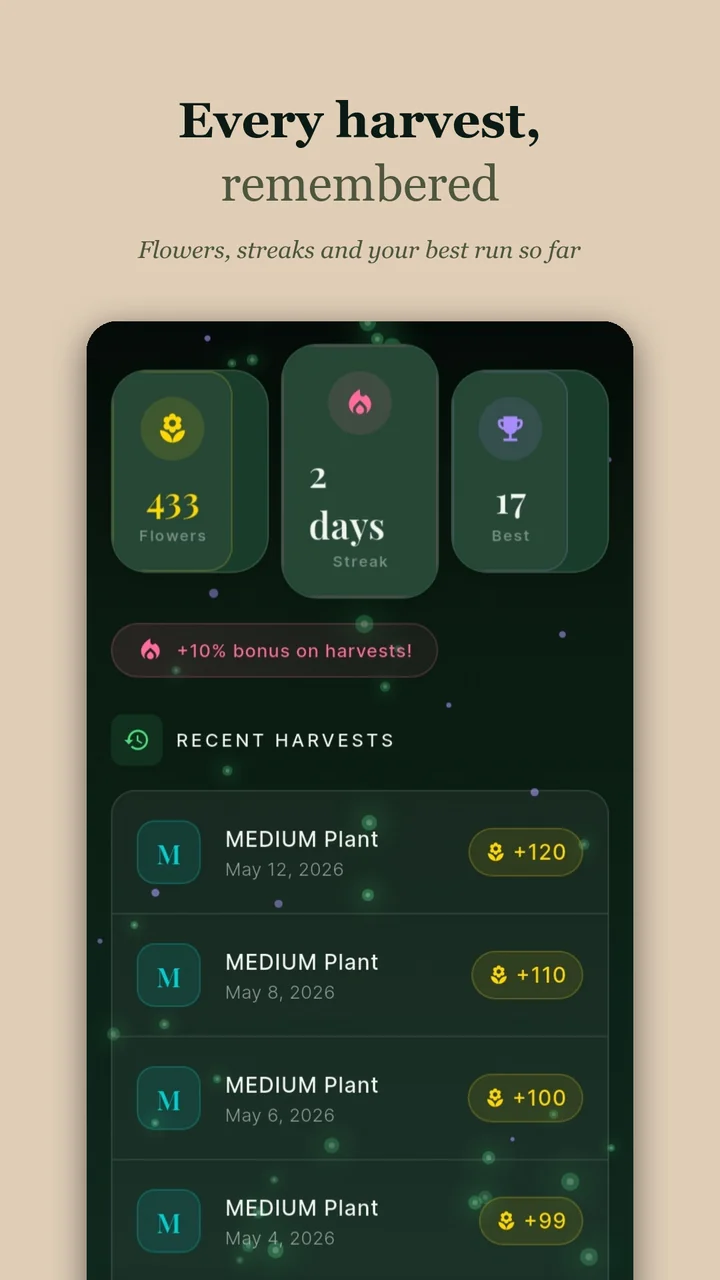
Five screens from the Android app, from your first welcome to a history of every harvest.

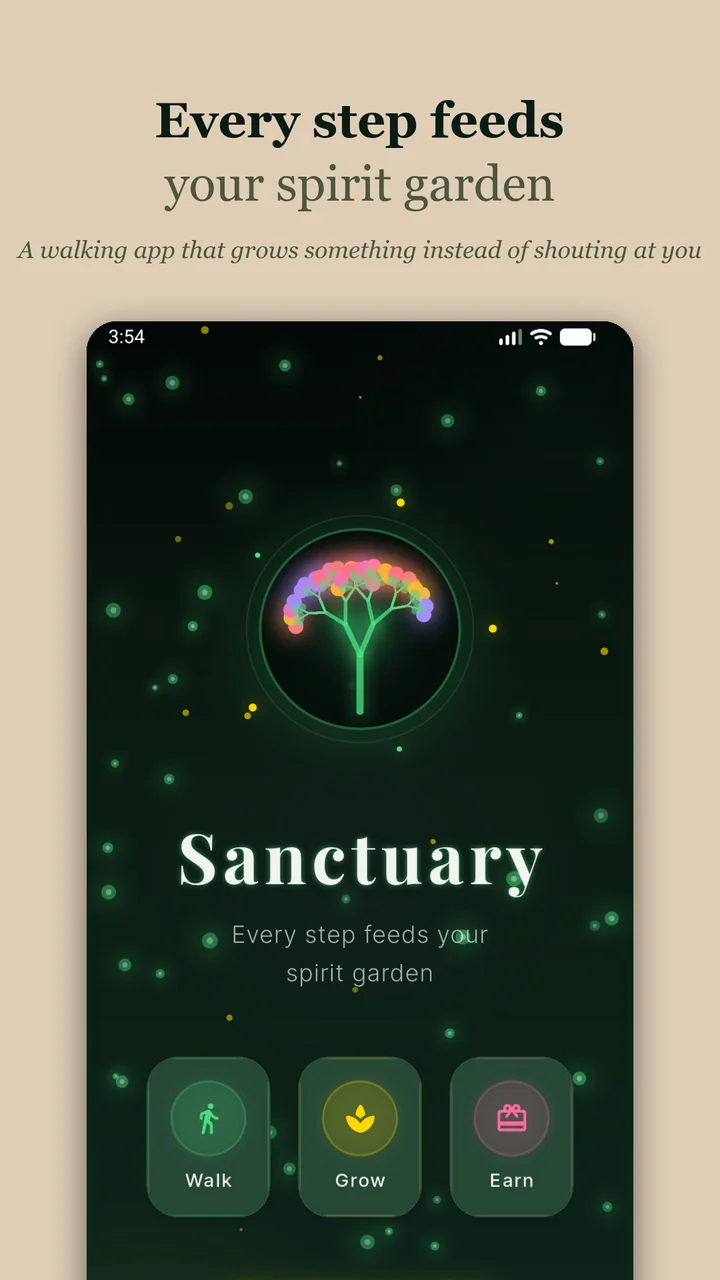
  • Official Sanctuary Google Play phone screenshot artwork featuring welcome and introduction
    Begin your journey
  • Official Sanctuary Google Play phone screenshot artwork featuring daily steps and garden progress
    See your daily progress
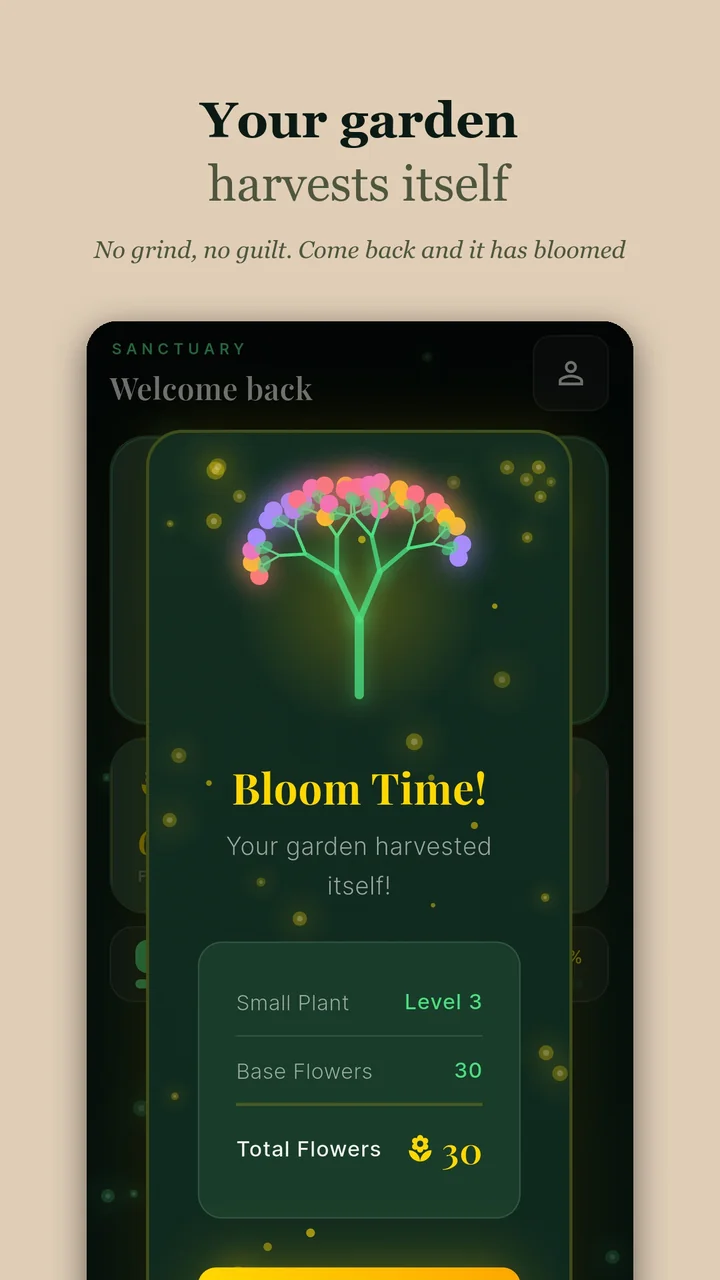
  • Official Sanctuary Google Play phone screenshot artwork featuring garden and plant growth
    Follow your growing garden
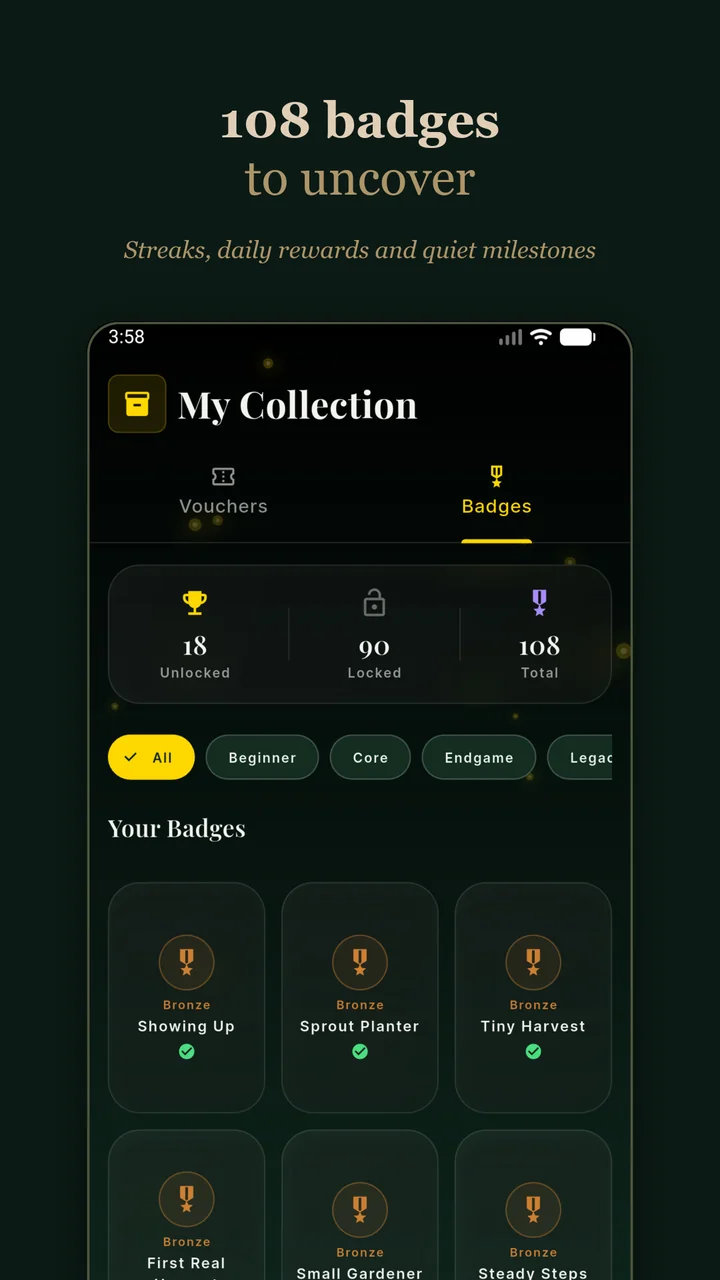
  • Official Sanctuary Google Play phone screenshot artwork featuring badge collection
    Celebrate milestones
  • Official Sanctuary Google Play phone screenshot artwork featuring harvest history
    Look back on your harvests

Official phone marketing screenshots published on Google Play. App layouts may vary by device and version. Illustrated progress, balances and rewards are examples; current availability and terms apply.